Mastering GitHub Actions workflow_dispatch Input Types
A hands-on guide to all five workflow_dispatch input types in GitHub Actions - string, number, boolean, choice, and environment - with real bash scripts and best practices.
# Mastering GitHub Actions workflow_dispatch Input Types
When people think about GitHub Actions, they usually think about automation -
pipelines that fire on every push, every pull request, or on a schedule. But
there is another trigger that does not get nearly as much attention:
workflow_dispatch.
workflow_dispatch lets you run a workflow manually, on demand, with
typed input fields that the person triggering it can fill in. Think of it
like a form that appears inside GitHub before the pipeline runs. You pick the
values, click a button, and the workflow uses them.
In this article we are going to walk through all five input types that
workflow_dispatch supports, why each one matters, and how to use them
correctly with real bash scripts. There is a companion GitHub repo where you
can fork and run every example yourself.
Companion repo: github.com/WasathTheekshana/pipeline-input-widgets
## Why workflow_dispatch Matters
Before we dive into the input types, it is worth understanding why manual workflow triggers are useful in the first place.
Most CI/CD pipelines are fully automated - they run on every commit and you do not think about them. That is great for building and testing code. But in real teams there are operations that should not be automated away completely:
- Deploying to production - you want a human to consciously decide when this happens, not have it fire automatically on every merge
- Running a database migration - you want to choose the right time window and confirm the target environment
- Triggering a load test - you need to specify the duration, concurrency, and target URL for that specific run
- Releasing a new version - you want to type in the version number and confirm it before anything gets published
- Debugging a live environment - you want to enable verbose logging for one run without changing any code
In all of these cases, workflow_dispatch gives you the best of both worlds:
the consistency and repeatability of a pipeline, with the intentionality of
a human decision.
The input types are what make this powerful. Instead of accepting raw strings for everything, you can constrain what the user provides - a checkbox for on/off flags, a dropdown for a fixed list of options, a number field for counts and timeouts. This prevents mistakes before the pipeline even starts.
## The Five Input Types
Here is a quick reference before we go deep on each one:
| Type | UI Widget | Value in Shell | Best For |
| ------------- | ------------ | ----------------------------- | ----------------------------- |
| string | Text field | Any text | Names, tags, messages |
| number | Number field | String — validate yourself | Counts, timeouts, ports |
| boolean | Checkbox | "true" or "false" | Dry-run, debug flags |
| choice | Dropdown | One of the listed options | Log levels, strategies |
| environment | Dropdown | A GitHub Environment name | Deployment targets |
One important note before we start: all input types arrive in shell scripts
as strings, even boolean and number. GitHub does the UI-level validation,
but your script receives plain text environment variables. We will cover the
implications for each type below.
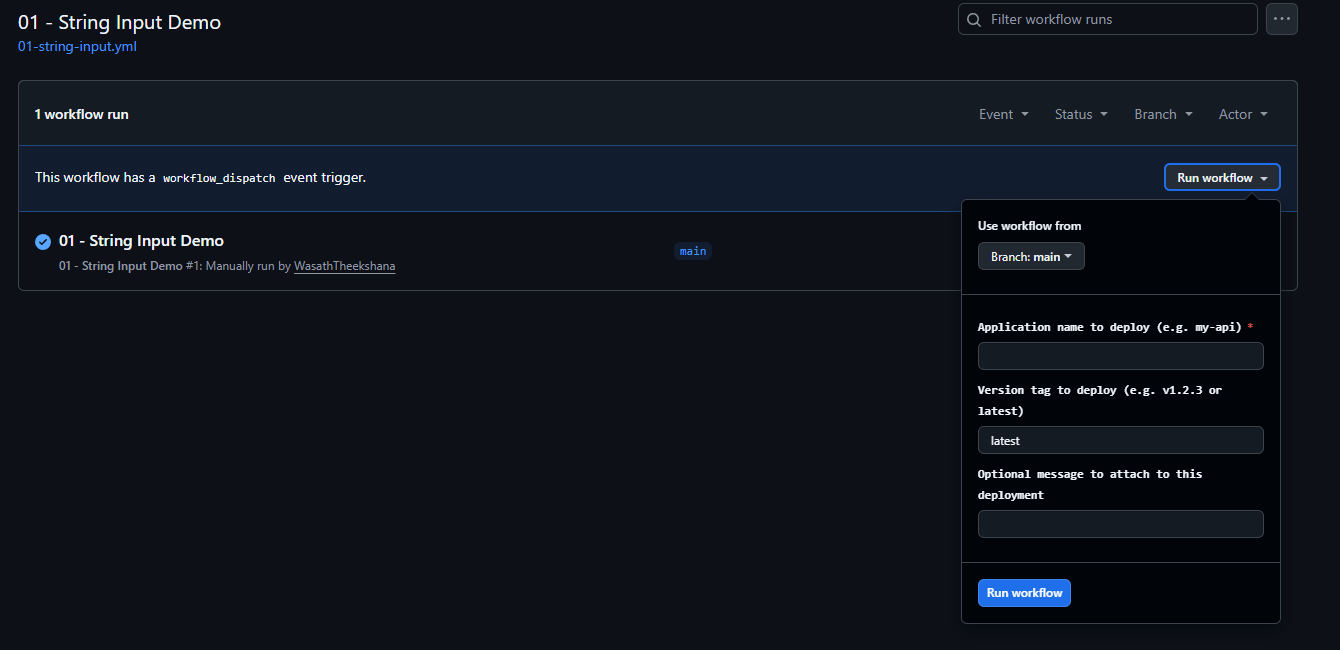
## 1. String Input
The string type is the most straightforward - it renders as a plain text
field where the user can type anything they want.
terminalon:
  workflow_dispatch:
    inputs:
      app_name:
        description: "Application name to deploy (e.g. my-api)"
        type: string
        required: true

      version_tag:
        description: "Version tag to deploy (e.g. v1.2.3 or latest)"
        type: string
        required: false
        default: "latest"

      deploy_message:
        description: "Optional message to attach to this deployment"
        type: string
        required: false
        default: ""
### Key things to understand
required: true vs required: false
When a field is required, GitHub will not let the user submit the form without
filling it in. When it is optional and you provide a default, that value is
used when the field is left blank.
No built-in format validation
GitHub does not know whether your string should be a URL, a version tag, or a
simple name. Any format validation has to happen in your script. This is a
common source of bugs - someone types 1.2.3 instead of v1.2.3 and the
deployment fails in a confusing way.
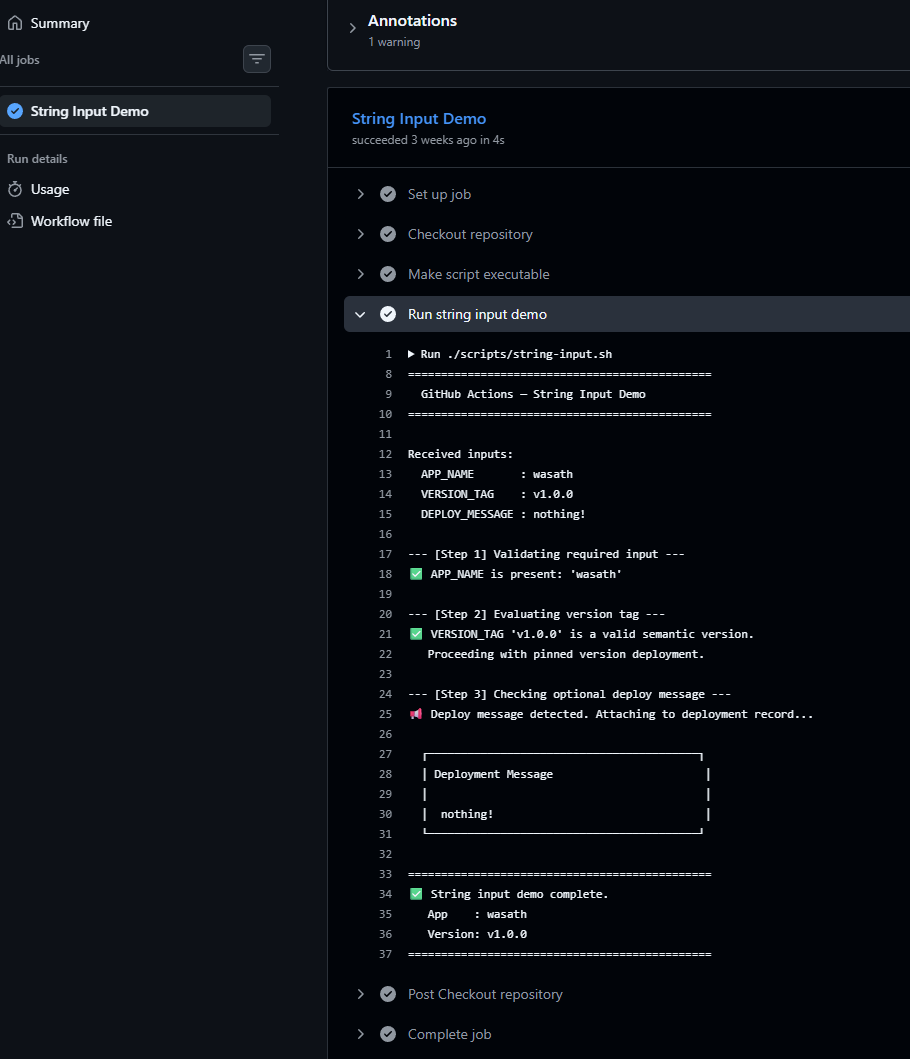
### Handling strings in bash
terminal# Check if a required string is empty (belt-and-suspenders validation)
if [[ -z "${APP_NAME}" ]]; then
  echo "ERROR: APP_NAME is required."
  exit 1
fi

# Validate format with a regex
if [[ "${VERSION_TAG}" =~ ^v[0-9]+\.[0-9]+\.[0-9]+$ ]]; then
  echo "Valid semver: ${VERSION_TAG}"
else
  echo "WARNING: Does not match v1.2.3 format"
fi

# Check if an optional string was left blank
if [[ -z "${DEPLOY_MESSAGE}" ]]; then
  echo "No message provided - skipping notification."
fi
### Why validate in the script if GitHub already validates required?
Because workflows can also be triggered via the GitHub REST API or the
gh CLI - and those callers can pass any value or skip fields entirely.
Your script is the last line of defence.
## 2. Number Input
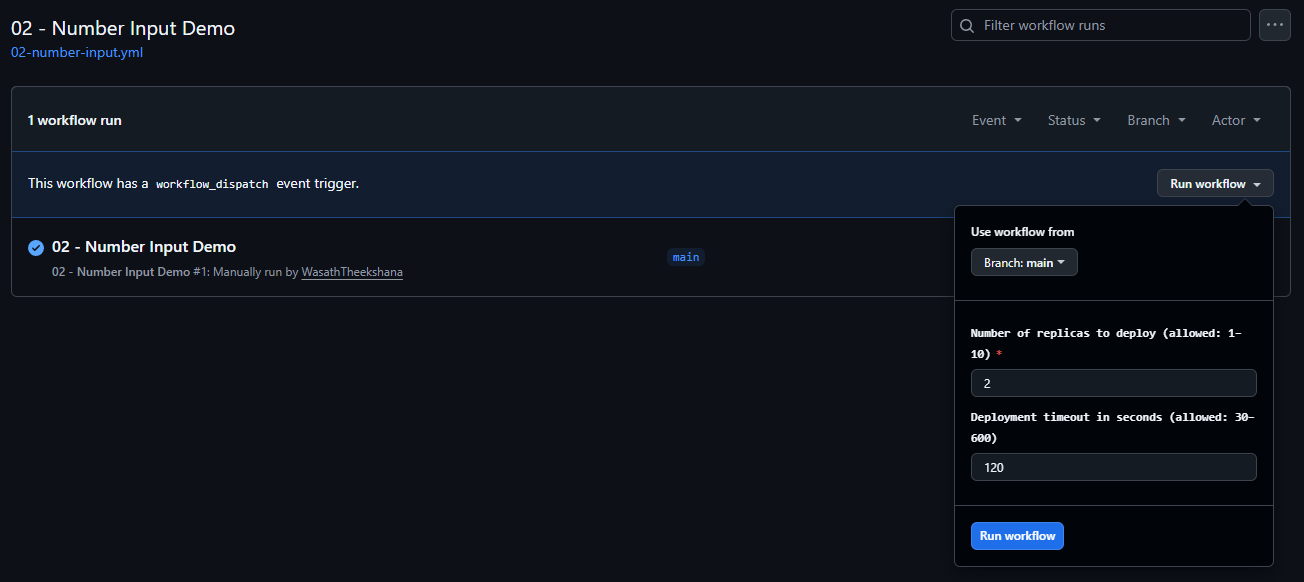
The number type renders as a numeric input field. GitHub validates that
whatever the user types is actually a number before the workflow starts.
terminalon:
  workflow_dispatch:
    inputs:
      replica_count:
        description: "Number of replicas to deploy (1-10)"
        type: number
        required: true
        default: 2

      timeout_seconds:
        description: "Deployment timeout in seconds (30-600)"
        type: number
        required: false
        default: 120
### The most important thing to know about number inputs
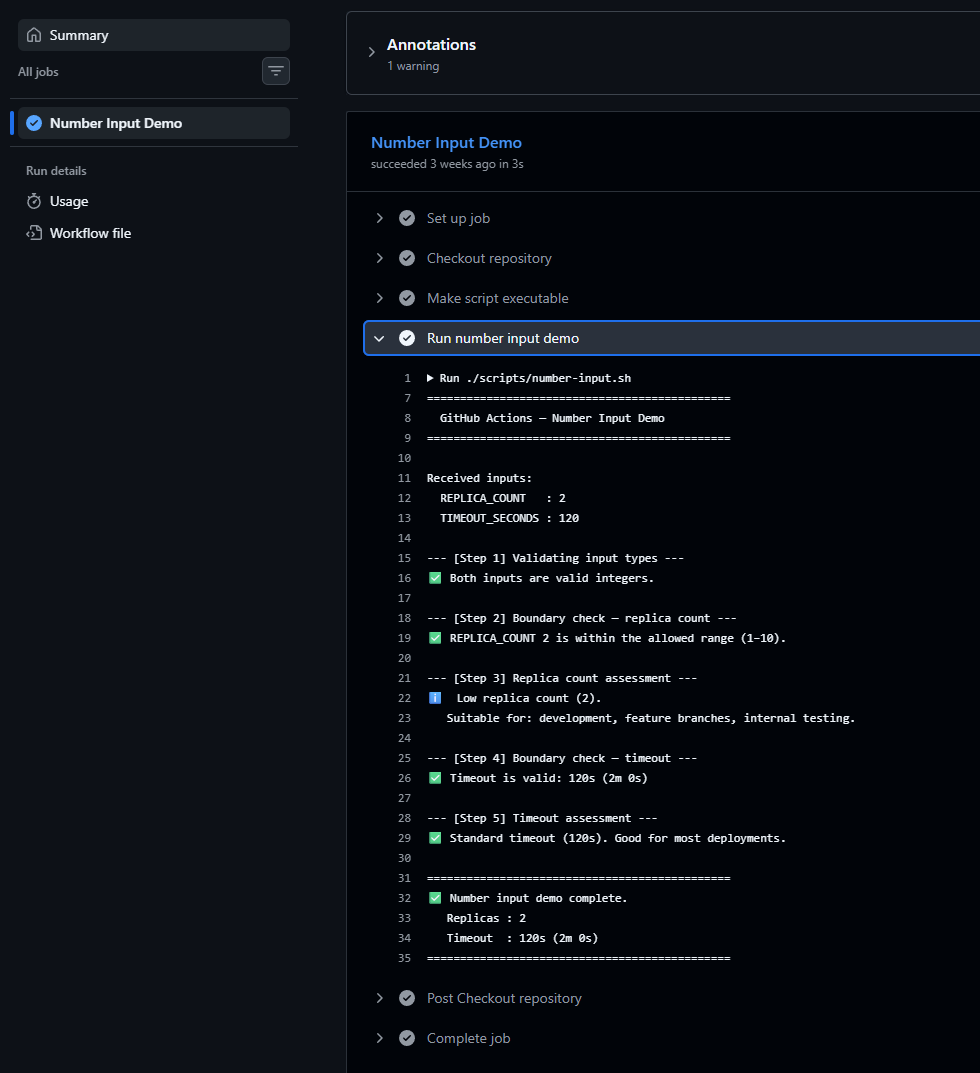
Even though GitHub shows a number input in the UI and validates that it is numeric, the value arrives in your bash script as a string. If you try to do arithmetic on it without validation first, you will get unexpected behaviour.
Always validate first:
terminal# Confirm it is actually an integer before doing math
if ! [[ "${REPLICA_COUNT}" =~ ^[0-9]+$ ]]; then
  echo "ERROR: REPLICA_COUNT must be a positive integer."
  exit 1
fi
### GitHub does not enforce min/max
The description field in the YAML is just text - GitHub does not parse it or
enforce the range. If you write "Number of replicas (1-10)" and someone
passes 500 via the API, the workflow will happily start. Enforce your own
boundaries:
terminalif (( REPLICA_COUNT < 1 || REPLICA_COUNT > 10 )); then
  echo "ERROR: REPLICA_COUNT must be between 1 and 10."
  exit 1
fi
### Arithmetic in bash
Once you have validated the value, you can do arithmetic with (( )):
terminal# Convert seconds to minutes
TIMEOUT_MINUTES=$(( TIMEOUT_SECONDS / 60 ))
REMAINING_SECONDS=$(( TIMEOUT_SECONDS % 60 ))
echo "Timeout: ${TIMEOUT_MINUTES}m ${REMAINING_SECONDS}s"

# Range-based branching
if (( REPLICA_COUNT == 1 )); then
  echo "WARNING: Single replica - no high availability"
elif (( REPLICA_COUNT <= 3 )); then
  echo "Low scale - suitable for dev/staging"
else
  echo "Production scale"
fi
## 3. Boolean Input
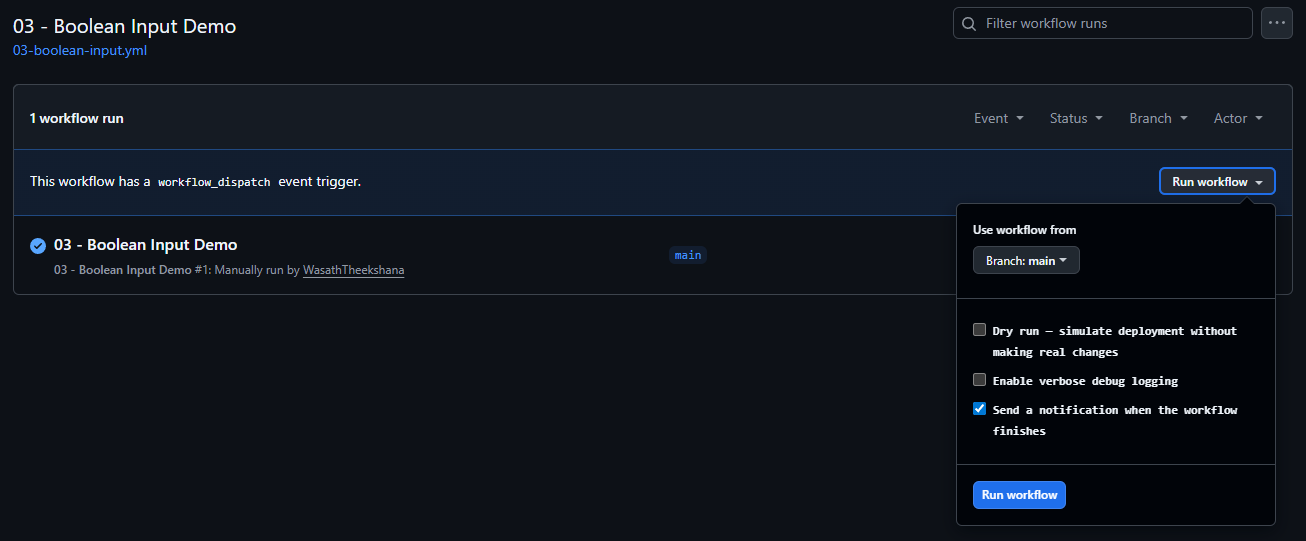
The boolean type renders as a checkbox. Checked means true, unchecked
means false. It is the most misunderstood input type because it behaves
differently depending on where you use it.
terminalon:
  workflow_dispatch:
    inputs:
      dry_run:
        description: "Dry run - simulate without making real changes"
        type: boolean
        required: false
        default: false

      enable_debug:
        description: "Enable verbose debug logging"
        type: boolean
        required: false
        default: false

      notify_on_complete:
        description: "Send a notification when the workflow finishes"
        type: boolean
        required: false
        default: true
### Two different contexts, two different behaviours
This is the critical point that trips most people up.
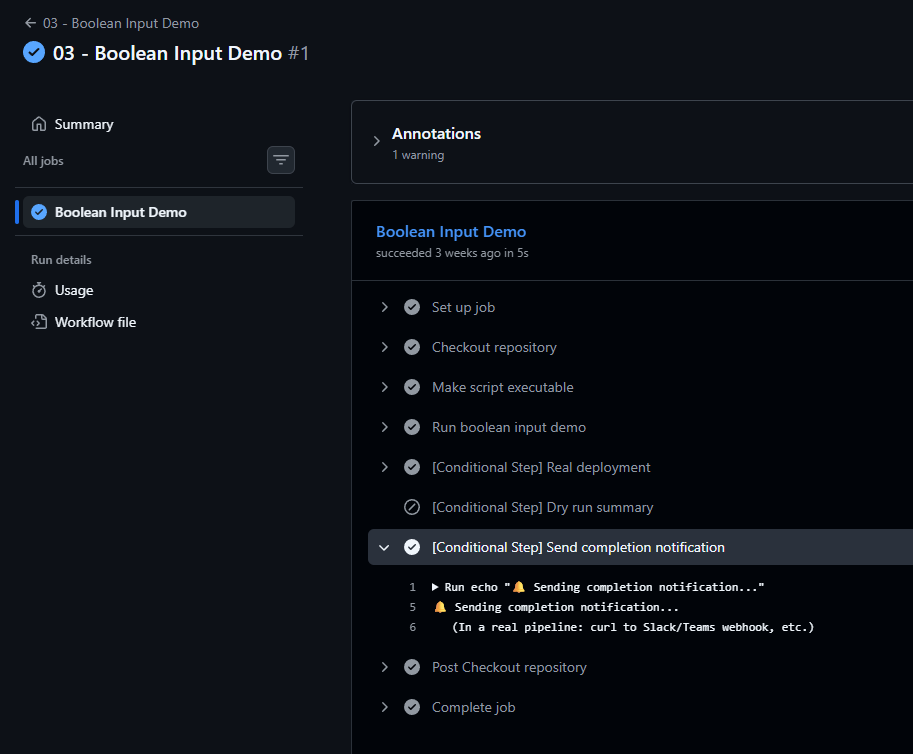
In workflow YAML if: conditions - it is a real boolean:
terminal- name: Real deployment
  if: ${{ inputs.dry_run == false }}
  run: echo "Deploying for real..."

- name: Dry run summary
  if: ${{ inputs.dry_run == true }}
  run: echo "Dry run complete - no changes made."
Here inputs.dry_run is a genuine boolean that GitHub evaluates. This is
clean and works exactly as you would expect.
In bash scripts - it is the string "true" or "false":
terminal# CORRECT - compare as a string
if [[ "${DRY_RUN}" == "true" ]]; then
  echo "Dry run mode"
fi

# WRONG - this will not work as expected in bash
if [[ "${DRY_RUN}" ]]; then   # "false" is still a non-empty string - always true!
  echo "This runs even when dry_run is false"
fi
This is the number one boolean mistake. The string "false" is truthy in bash
because it is a non-empty string. Always use == "true" or == "false".
### Why the dry-run pattern is so valuable
The dry-run flag is one of the most useful patterns in pipeline design. It lets you:
- Preview exactly what a pipeline would do before committing to it
- Test your pipeline logic in production without side effects
- Give less experienced team members a safe way to run operations
- Verify scripts after changes before enabling them on real infrastructure
terminalif [[ "${DRY_RUN}" == "true" ]]; then
  echo "[DRY RUN] Would have: kubectl apply -f k8s/"
  echo "[DRY RUN] Would have: helm upgrade my-app ./chart"
else
  kubectl apply -f k8s/
  helm upgrade my-app ./chart
fi
### Enabling bash trace mode via a boolean
Another great use of the boolean type is toggling set -x, which makes bash
print every command before it runs - extremely useful for debugging:
terminalif [[ "${ENABLE_DEBUG}" == "true" ]]; then
  set -x  # From here on, every command is printed before execution
fi
This way you get verbose output only for the runs where you need it, without changing any code.
## 4. Choice Input
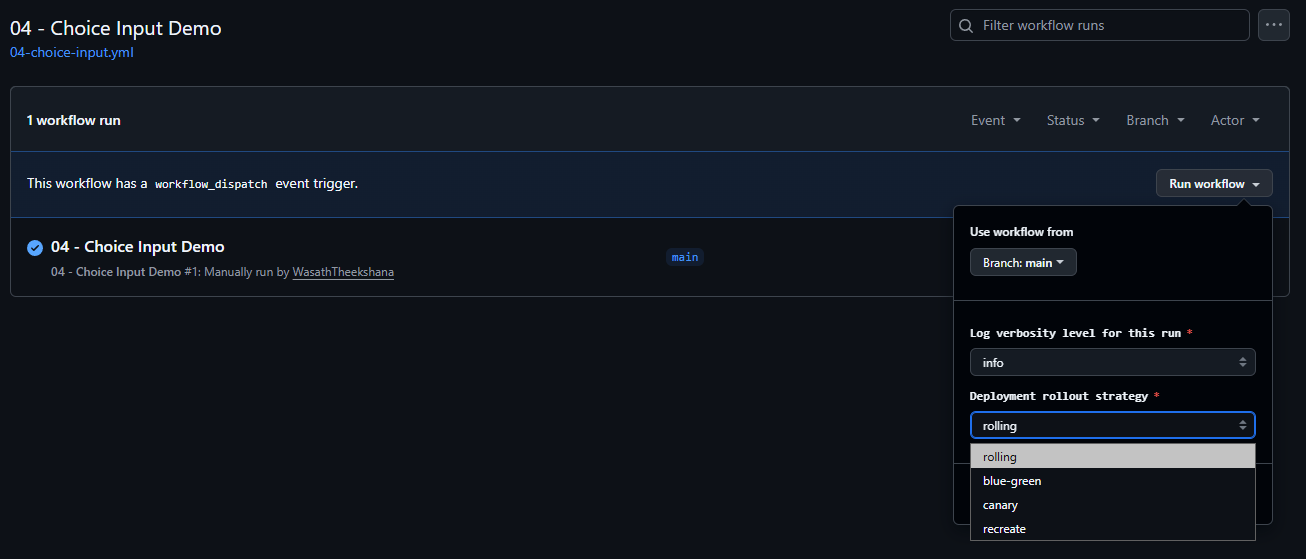
The choice type renders as a dropdown menu. You define the list of
allowed values directly in the YAML, and the user can only pick from those
options - no free text is accepted through the UI.
terminalon:
  workflow_dispatch:
    inputs:
      log_level:
        description: "Log verbosity level"
        type: choice
        required: true
        default: "info"
        options:
          - debug
          - info
          - warn
          - error

      deployment_strategy:
        description: "Deployment rollout strategy"
        type: choice
        required: true
        default: "rolling"
        options:
          - rolling
          - blue-green
          - canary
          - recreate
### Why choice is better than string for fixed options
You might be tempted to use a string input and document the allowed values
in the description. The choice type is strictly better for fixed options:
- The user cannot mistype a value
- You do not need to validate the value in your script (for UI-triggered runs)
- The form is self-documenting - the dropdown shows exactly what is allowed
- GitHub rejects invalid values before the workflow even starts
### Handling choices in bash with case
The case statement is the right tool for choice inputs. It is clean, readable,
and easy to extend when you add new options:
terminalcase "${DEPLOYMENT_STRATEGY}" in
  rolling)
    echo "Gradual rollout - zero downtime"
    MAX_SURGE=1
    MAX_UNAVAILABLE=0
    ;;
  blue-green)
    echo "Parallel environment swap - instant rollback available"
    ;;
  canary)
    echo "Partial traffic shift - monitoring before full promotion"
    CANARY_WEIGHT=10
    ;;
  recreate)
    echo "WARNING: Full restart - expect downtime"
    ;;
  *)
    # Always include this - API callers can bypass UI validation
    echo "ERROR: Unknown strategy '${DEPLOYMENT_STRATEGY}'"
    exit 1
    ;;
esac
### Always add the *) catch-all
Even though the GitHub UI only allows listed options, workflows can also be
triggered via the REST API or gh CLI where any string can be passed. The
*) catch-all protects you from unexpected values in those cases.
### Deriving configuration from a choice
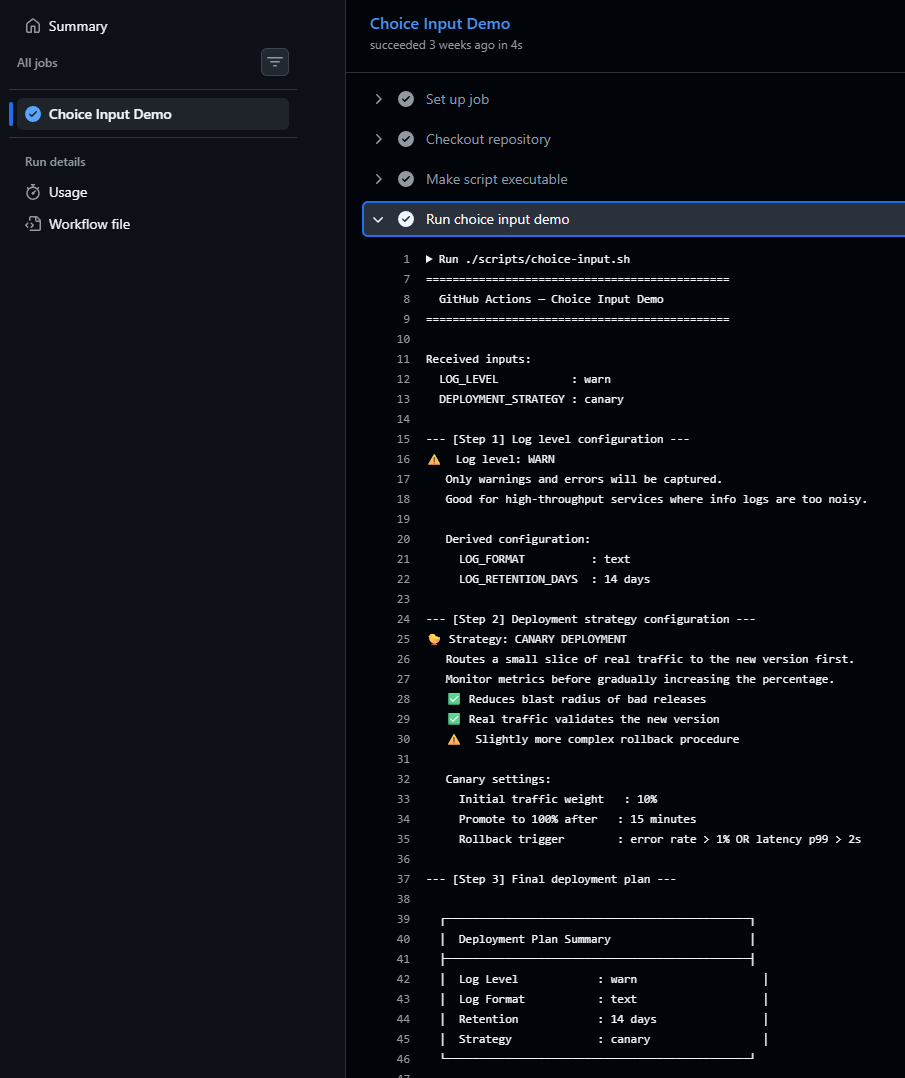
A powerful pattern is to use the user's choice to set secondary variables that drive the rest of the script. This keeps the branching logic in one place and makes the rest of the script clean:
terminalcase "${LOG_LEVEL}" in
  debug) LOG_FORMAT="json"; LOG_RETENTION_DAYS=3  ;;
  info)  LOG_FORMAT="json"; LOG_RETENTION_DAYS=7  ;;
  warn)  LOG_FORMAT="text"; LOG_RETENTION_DAYS=14 ;;
  error) LOG_FORMAT="text"; LOG_RETENTION_DAYS=30 ;;
esac

# Now use the derived variables everywhere below
echo "Format: ${LOG_FORMAT}, Retention: ${LOG_RETENTION_DAYS} days"
## 5. Environment Input
The environment type is the most unique of the five. It renders as a dropdown
like choice, but the options are not hardcoded in the YAML - they come
from the GitHub Environments configured in your repository settings.
terminalon:
  workflow_dispatch:
    inputs:
      target_environment:
        description: "Target environment to deploy to"
        type: environment
        required: true

jobs:
  deploy:
    runs-on: ubuntu-latest
    environment: ${{ inputs.target_environment }}  # This is the key line
### What makes this type different
The value in shell works the same as a choice - it is just a string with the
environment name. The real difference is the environment: key on the job.
When you set environment: ${{ inputs.target_environment }} on a job, GitHub
automatically applies everything attached to that environment:
- Protection rules - required reviewers, wait timers, deployment branch restrictions. The job will not start until all rules pass.
- Secrets - each environment can have its own version of a secret. Your
productionenvironment gets the real database password;developmentgets the test one. The script does not need to know which is which. - Variables - environment-level variables are injected the same way as secrets.
### Why this matters for deployment pipelines
Without the environment type, teams typically handle environment differences
by checking a string input value and branching logic in the script. This works,
but it mixes configuration with code and makes it easy to accidentally use the
wrong credentials.
With the environment type:
- Credentials are managed in GitHub, not in your YAML or scripts
- Production deployments require explicit human approval before the job runs
- You get a clear deployment history per environment in the GitHub UI
- Branch protection rules prevent deploying from the wrong branch to production
### The approval gate in action
If you configure a required reviewer on the production environment, the
workflow will pause after the trigger and show an approval request. Nobody gets
to skip it - not even repository admins, unless they approve it themselves.
This is one of the most powerful safety mechanisms available in GitHub Actions
and it is entirely driven by the environment input type combined with the
environment: key on the job.
## Passing Inputs as Environment Variables - A Security Note
Throughout all five workflows in this repo, inputs are passed to scripts like this:
terminal- name: Run script
  env:
    APP_NAME: ${{ inputs.app_name }}
    VERSION_TAG: ${{ inputs.version_tag }}
  run: ./scripts/my-script.sh
Notice that the input is assigned to an environment variable (env:) and
the script reads from that variable - not from ${{ inputs.app_name }}
directly inside the run: block.
Why does this matter?
If you inline inputs directly into shell commands, a malicious input value can break out of the intended command. For example:
terminal# DANGEROUS - do not do this
- run: echo "Deploying ${{ inputs.app_name }}"
If someone passes "; rm -rf / #" as the app name, the shell will execute it.
Using env: to pass inputs keeps them as plain variable values that the shell
treats as data, not as code. This is one of the most important security
practices for any workflow that accepts user input.
## Running the Examples Yourself
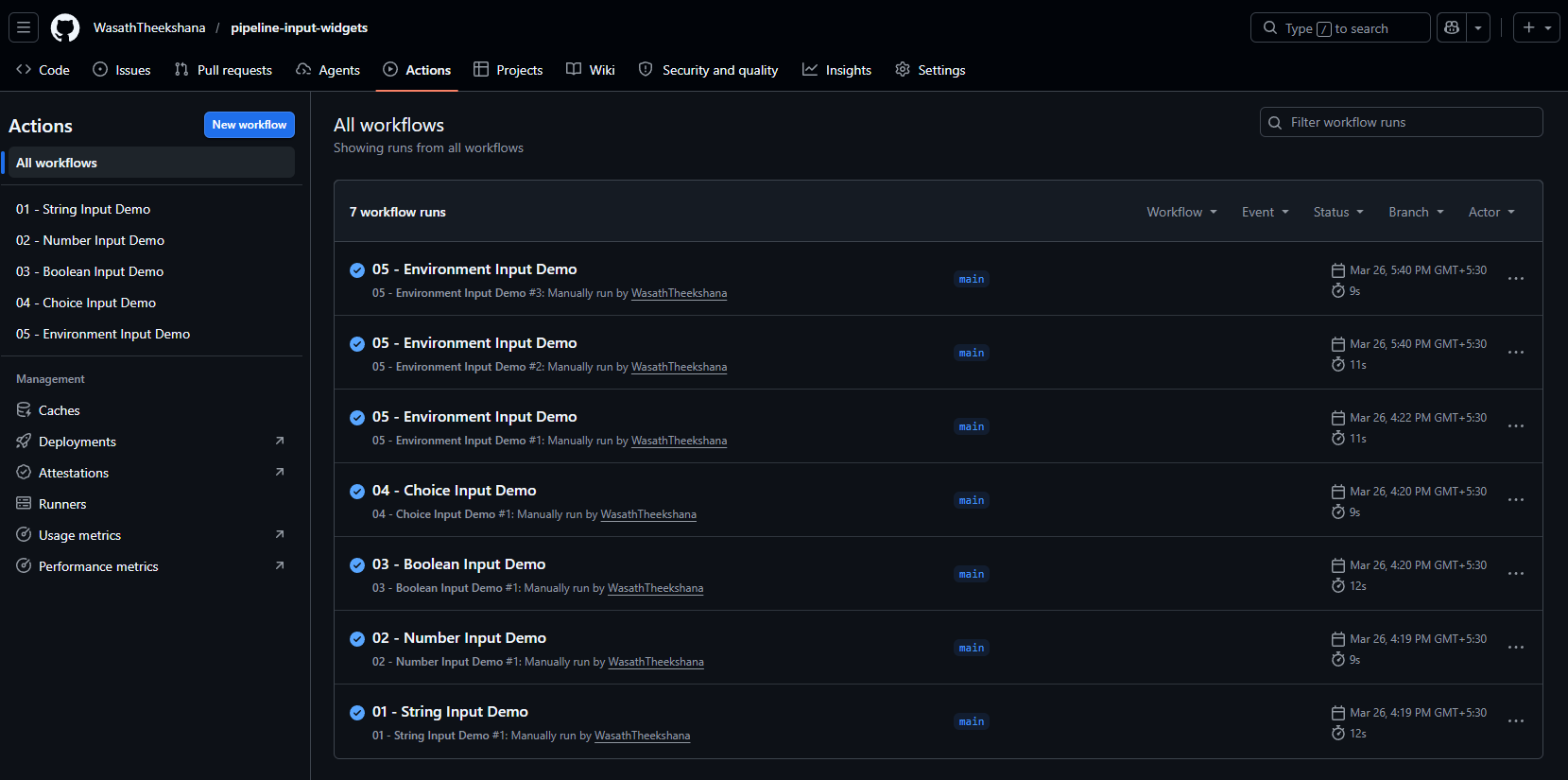
All five workflows in the companion repo are designed to be run by anyone.
There are no external dependencies - everything is simulated with echo
statements so you can see the logic without needing real infrastructure.
Fork the repo and try it:
- Fork github.com/WasathTheekshana/pipeline-input-widgets
- Go to the Actions tab in your fork
- Select a workflow from the left sidebar
- Click Run workflow, fill in the inputs, and observe the output
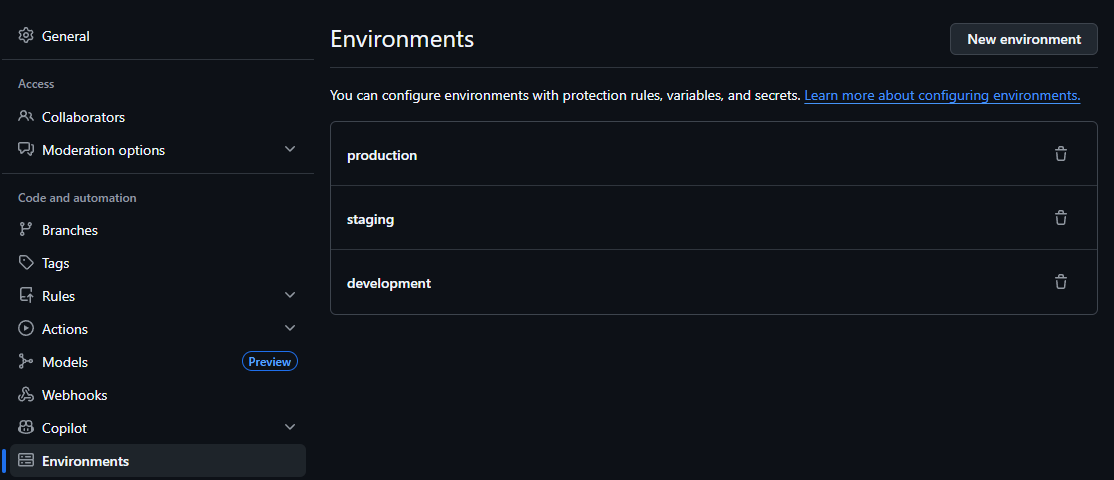
For workflow 05 (environment input), you need to create the environments first:
- Go to Settings - Environments in your fork
- Create
development,staging, andproduction - Optionally add a required reviewer to
productionto see the approval gate
## Quick Reference - Shell Patterns for Each Type
Here is a summary of the bash patterns used for each input type:
terminal# string - check for empty, validate format
if [[ -z "${MY_STRING}" ]]; then echo "Required"; fi
if [[ "${MY_STRING}" =~ ^v[0-9]+\.[0-9]+\.[0-9]+$ ]]; then echo "Valid semver"; fi

# number - validate type, enforce boundaries, do arithmetic
if ! [[ "${MY_NUMBER}" =~ ^[0-9]+$ ]]; then echo "Not a number"; exit 1; fi
if (( MY_NUMBER < 1 || MY_NUMBER > 100 )); then echo "Out of range"; exit 1; fi
RESULT=$(( MY_NUMBER * 2 ))

# boolean - always compare as a string
if [[ "${MY_BOOL}" == "true" ]]; then echo "Enabled"; fi
if [[ "${MY_BOOL}" == "false" ]]; then echo "Disabled"; fi

# choice - use case with a catch-all
case "${MY_CHOICE}" in
  option-a) echo "Doing A" ;;
  option-b) echo "Doing B" ;;
  *) echo "Unknown: ${MY_CHOICE}"; exit 1 ;;
esac

# environment - same as string/choice in shell
# the real power is in the workflow: environment: ${{ inputs.target_environment }}
case "${TARGET_ENV}" in
  development) REPLICAS=1 ;;
  staging)     REPLICAS=2 ;;
  production)  REPLICAS=5 ;;
esac
## Summary
workflow_dispatch with typed inputs is one of the most underused features in
GitHub Actions. It bridges the gap between fully automated pipelines and the
human judgement that certain operations still need.
The five input types each serve a distinct purpose:
- string - when you need free-form text with your own validation rules
- number - when you need a numeric value with boundary enforcement
- boolean - when you need an on/off toggle, especially for dry-run or debug
- choice - when the allowed values are a fixed, known list
- environment - when you need to target a GitHub Environment and want its protection rules, secrets, and deployment tracking to activate automatically
The biggest things to remember:
- All inputs arrive as strings in bash - validate everything yourself
- Boolean inputs in shell are the string
"true"or"false"- never a real boolean - Always pass inputs via
env:, not inline inrun:blocks - Always add a
*)catch-all incasestatements - The
environmentinput type only becomes powerful when you also setenvironment:on the job
Fork the repo, run the workflows, and read the output - the scripts are written to explain what they are doing as they do it.